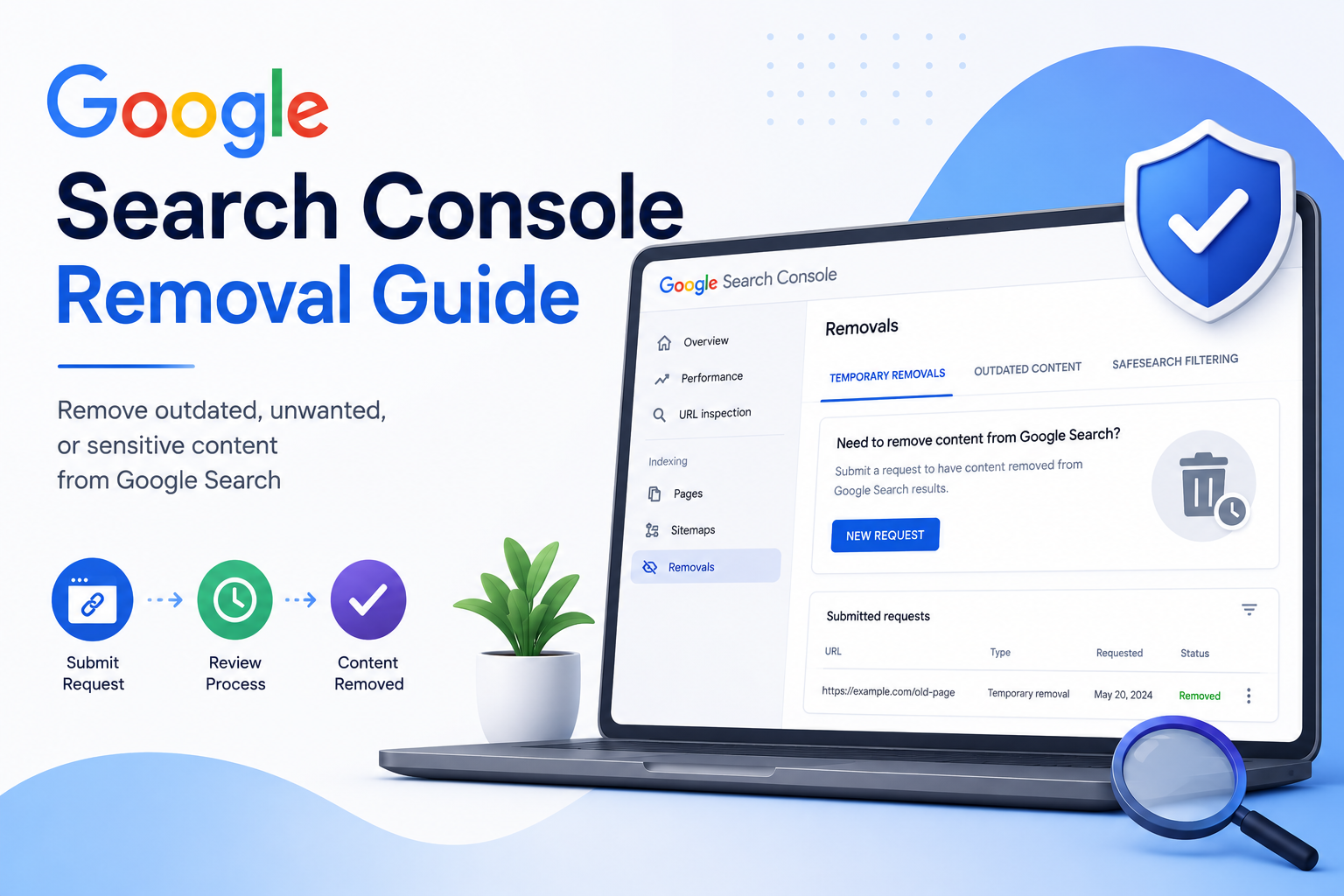
Managing your site’s presence in search results requires precision, especially when outdated or sensitive content appears unexpectedly. Google Search Console offers a dedicated Removals tool that lets webmasters control indexing quickly and effectively. This guide examines how to access the tool, differentiate between removal types, submit requests correctly, and avoid common errors. Whether you’re troubleshooting indexing issues or protecting private information, understanding these steps ensures accurate results and faster resolution.
Introduction to Google Search Console
Google Search Console provides the URL removal tool that lets webmasters submit removal requests directly through the Search Console dashboard after verifying a URL prefix property or domain property. This access opens after completing property verification through one of several available methods. Verification grants full control over the removal options for your site.
Verification methods include adding an HTML tag to your pages, making a DNS record change, or connecting through Google Analytics. The HTML tag method typically works immediately once placed correctly. DNS record verification takes a few minutes to 48 hours depending on how quickly the change propagates across servers.
A domain property covers all subdomains and protocols under your main domain name. This gives broader access to removal features across your entire site structure. A URL prefix property remains limited to one exact protocol and path combination only.
Once verified, you can access the removal tool to handle specific pages or entire sections. The dashboard shows your current indexing status for each verified property. Property owners can then submit removal requests based on their specific needs and site requirements.
Accessing the Removals Tool
The Removals tool sits in the left navigation menu under Indexing after you select your verified property in the Search Console dashboard.
Once you reach the Search Console dashboard, look for the left sidebar menu. Click on Indexing to expand that category and reveal additional options below it.
From the expanded list, select the Removals entry. This action loads the main interface where you manage all previous and current removal requests.
The tool displays up to 90 days of removal request history. You can review past submissions without needing to navigate through additional menus or settings screens.
The New Request button appears at the top right of the Removals interface. This placement keeps the action button visible regardless of how far you scroll down the request list.
Locating the Removals Section
Navigate to the Removals section by clicking Removals under the Indexing category in the left sidebar of Google Search Console.
The page layout includes a search bar positioned at the top for filtering requests. You can enter specific URLs or keywords to narrow down the displayed results quickly.
Below the search bar sits a table with clear headers. These headers show URL, Status, Type, and Date Submitted for each removal request entry.
The page shows 100 requests per view. Pagination controls appear at the bottom of the table for accessing older submissions beyond the initial display.
Each row in the table represents one individual removal request. The status column indicates whether Google has processed, approved, or rejected that particular submission.
Types of Removals Available
Google Search Console offers two removal types: Temporary URL Removal (hides URLs for up to 6 months) and Clear Cached URL (removes cached versions without affecting indexing).
Each removal option serves different needs within your index removal strategy. The temporary option works well when you need immediate action on content that should not appear in search results.
The cache clearing option addresses situations where outdated information continues to display even after page updates occur.
| Removal Type | Effect | Duration | Scope | Use Case |
|---|---|---|---|---|
| Temporary URL Removal | Hides from SERPs | 6-month duration | Requires URL or URL pattern | Urgent privacy or legal issues |
| Clear Cached URL | Removes Google cache only | Permanent | Single URL only | Outdated information in cache |
Temporary removal does not delete pages from your server. Your content remains accessible through direct links and continues to exist on your hosting infrastructure.
Temporary URL Removal
Temporary URL Removal submits a request that hides matching URLs from Google search results for a maximum duration of 6 months.
Access this feature through the removal tool section of your Search Console dashboard. Select the Temporary remove URL radio button as your first step.
Enter the full URL or URL pattern in the provided field. Choose between Single URL or URL prefix and all pages below depending on your needs.
Submit your request once these selections are complete. Requests appear as Pending initially, then change to Approved or Rejected within 24 to 48 hours.
For example, https://example.com/private-page/ submitted as a single URL will hide only that exact page. This approach works effectively for urgent privacy or legal concerns requiring immediate action.
Clear Cached URL
Clear Cached URL removes the cached version of a specific page from Google’s index without affecting the page’s indexing status.
Begin by selecting the Clear cached URL option in the removal tool interface. Paste the exact URL you want processed into the input field.
Submit your request to initiate the cache clearing process. This option takes 24 to 48 hours to complete its work.
The process affects only the cache copy shown in search results. Your live page remains unchanged and continues to serve visitors normally.
Once complete, the request displays a Cache cleared status in your dashboard. This removal type proves useful when outdated information appears in cached versions despite recent page updates.
Submitting a Removal Request
Submitting a removal request requires selecting the removal type and specifying either a single URL or URL pattern in the Removals tool interface. Users access this feature through their Search Console dashboard after property verification. The process helps site owners manage which pages appear in search results.
The four-field submission form includes several components. First, users select a removal type from the dropdown menu. Next comes the URL input field where they enter the specific address to remove. A pattern type selector follows with options for single pages or broader directories.
URLs can contain up to 2048 characters in length. An optional reason note field allows users to provide context about their request. This additional information helps Google understand the purpose behind the removal.
Most requests typically process within 24 hours after submission. Users receive confirmation once the temporary removal takes effect. The removal remains active for approximately six months unless renewed or cancelled.
URL Pattern Options
The Removals tool provides two URL pattern options: ‘Single URL’ for one specific page or ‘URL prefix and all pages below’ for directory-level removal. Each option serves different purposes depending on the scope needed. Site owners should choose carefully based on their content structure.
Single URL requires an exact match including protocol and trailing slash. This option removes only https://example.com/page without affecting other pages. The system checks the complete address character by character for accuracy.
URL prefix requires the full directory path ending with a forward slash. This pattern removes https://example.com/folder/ and all subpages beneath it. The system applies the removal across every page within that directory structure.
Wildcards receive no support within the pattern syntax. Users must specify exact addresses without special characters or placeholders. This limitation ensures precise control over which content gets removed from search results.
Monitoring Removal Status
The Removals section displays request status in four possible states: Pending, Approved, Rejected, or Expired with corresponding timestamps. Each status provides clear information about where your request stands in the review process.
Pending status means your removal request was submitted successfully and Google is currently reviewing it. This stage requires no additional action from you while the team examines the submitted details.
Approved requests show that the URL was successfully removed from search results. Temporary removals display an Expires on [date] label indicating when the removal will automatically end.
You can extend an approved temporary removal by submitting a new request before the current expiration date arrives. This approach maintains the removal without interruption to your site visibility goals.
Rejected requests include a visible reason for denial that helps you understand why the removal was not granted. Review this feedback before deciding whether to adjust your approach or try a different removal method.
Expired status appears when a temporary removal reaches its six-month limit. At this point the URL may return to search results unless you submit another request beforehand.
Common Errors and Troubleshooting
The most common removal request errors include ‘URL not found in index,’ ‘Invalid URL format,’ and ‘Request already pending’ with specific error codes displayed in the dashboard. Each issue appears in the Search Console dashboard with details about why the request failed. Understanding these patterns helps users correct problems quickly before resubmitting.
When encountering a URL not found error, first verify the page exists using the URL Inspection tool. This tool checks the current indexing status and shows whether Google has discovered the address. A 404 error or missing page often triggers this message, so confirm the exact path before making another attempt.
An Invalid URL format rejection occurs when the address lacks the required protocol. Always ensure the entry includes https:// at the start, followed by the complete domain and path. Missing this prefix prevents the system from processing the removal request correctly.
A Request already pending status means an identical submission sits in the queue. Wait 24 hours before trying again, since duplicate entries receive automatic rejection. The status column shows the specific rejection reason for every failed attempt, allowing users to address the exact problem listed there.
Best Practices for Removals
Best practice requires verifying the URL exists in Google index using URL Inspection before submitting removal requests, and preferring permanent solutions like noindex directives over temporary removals.
Confirming the current indexing status prevents unnecessary submissions that waste time. The URL Inspection tool shows whether pages appear in search results before any action occurs.
Experts recommend using the noindex meta tag for permanent removal instead of temporary options. This approach prevents re-indexing while temporary removal expires after 6 months.
Documenting each request helps track patterns and reasons over time. A simple spreadsheet with submission dates and details supports better decision making for future cases.
Site owners should implement robots.txt to block crawling of sensitive directories. This method protects areas that should never reach search engines.
Submit removal requests only for urgent legal or privacy issues. Routine content changes work better with permanent solutions than temporary tools.
Combining these approaches creates a consistent strategy for managing indexed content. Permanent methods reduce repeated work while temporary options handle immediate concerns when needed.
Reindexing After Removal
After a temporary removal expires or you want to restore indexing, use the URL Inspection tool to request reindexing by clicking Request Indexing on the specific URL.
Start by opening Google Search Console and selecting the correct property. Navigate to the URL Inspection section in the left menu to begin the process.
Enter the previously removed URL into the inspection field at the top. The tool will load the current status and show whether the page remains excluded from search results.
Once the details appear, locate and click the Request Indexing button. This action sends your page directly to the Google indexing pipeline for review.
After submitting the request, wait 24-48 hours for the initial recrawl to complete. During this period, Googlebot evaluates the page content and checks for any remaining restrictions.
You can also remove the noindex directive from the page source code before requesting reindexing. Update your sitemap and resubmit it through Google Search Console to speed up discovery.
Reindexing typically restores the URL within 1-7 days depending on crawl budget allocation for your site. Monitor the index coverage report to confirm the page returns to valid URL indexed status.
Leave a Reply